 FolderHue
Change folder colors and icons in Windows.
Find your folders at a glance. FolderHue is a folder colorizer and folder icon changer for Windows 11 and 10: pick a color, a symbol, an emoji or one of your own photos, right from the right-click menu.
 Free to start. Pro is $4.99, once.
 This PC › Projects
Three clicks, no app to open
Right-click a folder
In File Explorer, on the desktop, or on fifty folders at once.
Choose a color
Pick one from Folder color, or More colors and icons for everything else.
That's it
The new icon shows straight away and stays after a restart.
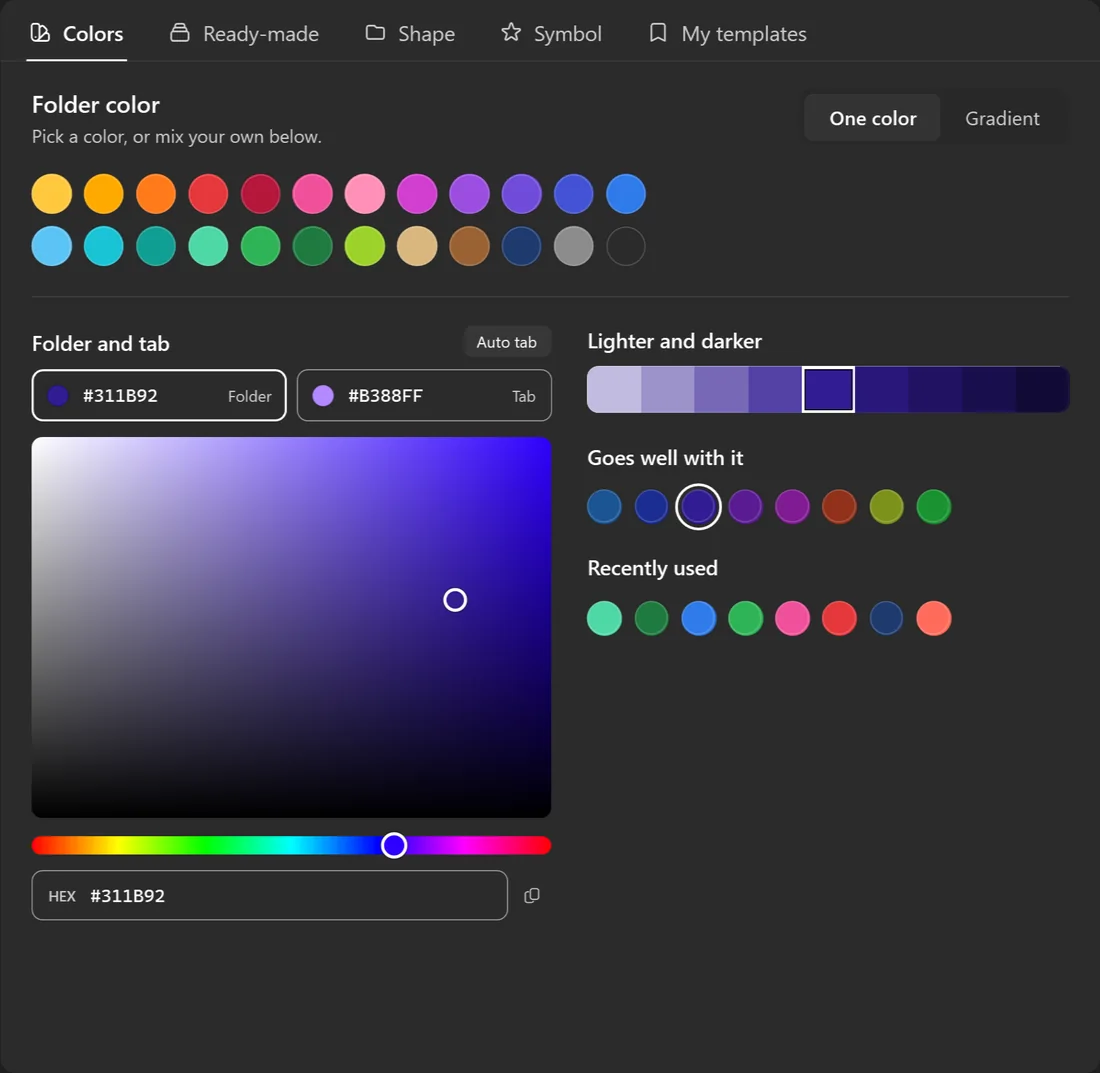
Any color you like
Start from 24 ready colors, or mix your own with the color picker and a HEX code.
- Lighter and darker shades of every color
- Colors that go well with the one you picked
- Gradients that blend two colors
- A different color for the folder's tab
Your photos, on your folders
Put a holiday photo on Travel, a logo on a client's folder, a screenshot on a project.
- The picture fills the folder in every style
- Move and zoom it until it looks right
- Or write on the folder: a letter, a year, a client code
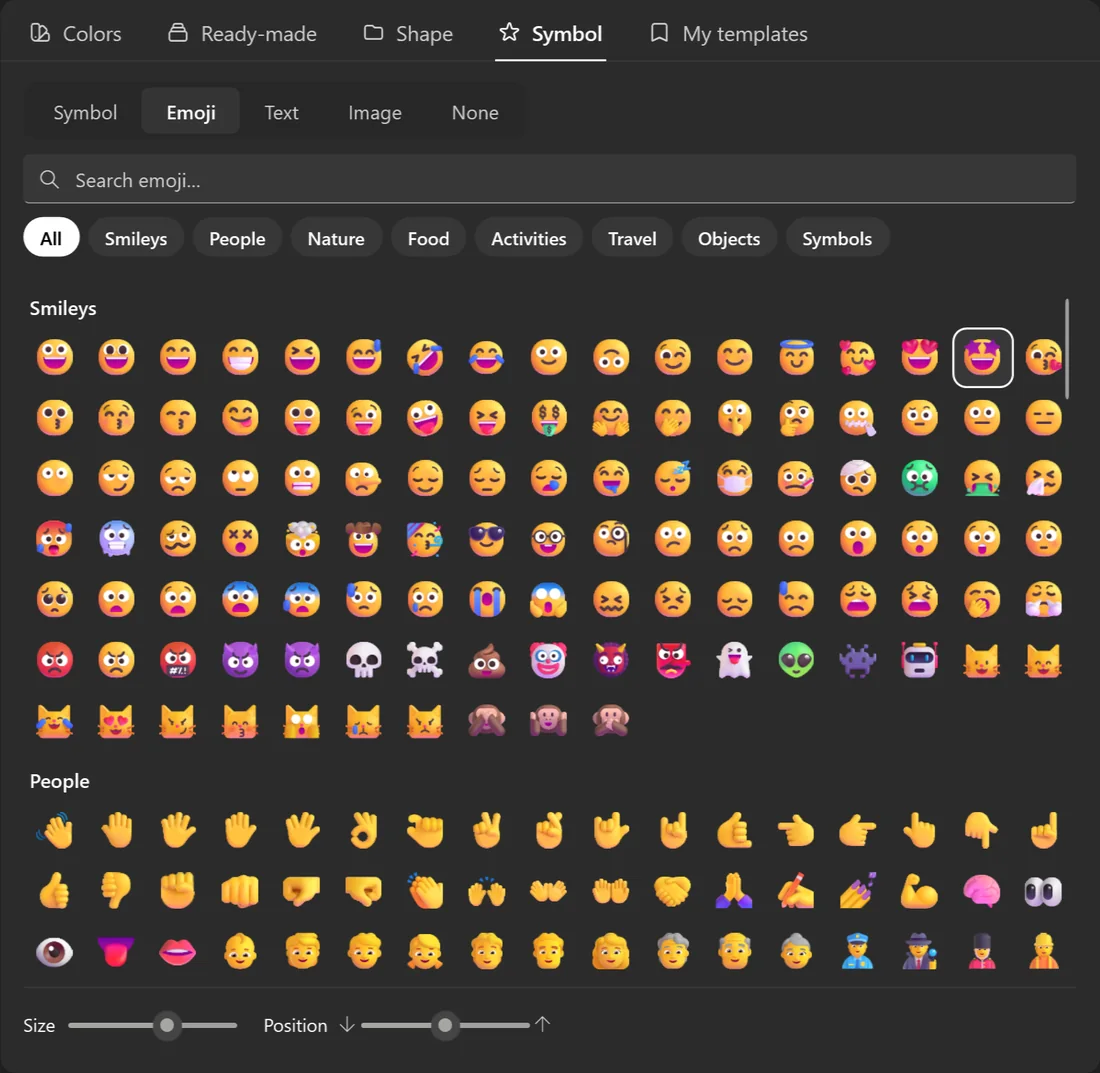
Every emoji and 7,000+ symbols
Show what is inside before you open it: music, code, money, school, travel and thousands more.
- Search by name
- Any color, size and position on the folder
- Emoji drawn in full color











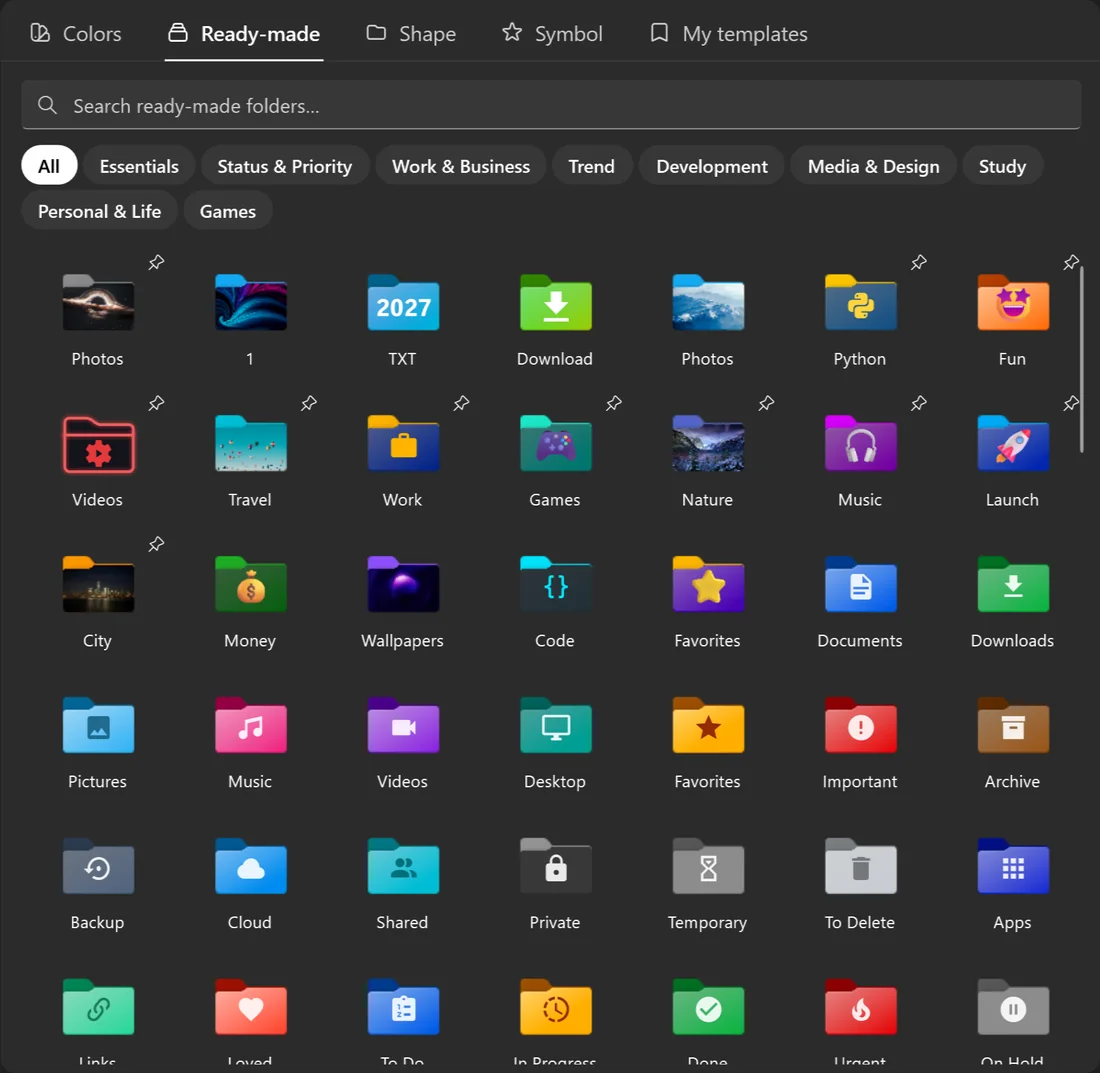
170 folders ready to use
Documents, Downloads, Invoices, To Do, Done, Urgent, Code, School, Games and many more. One click and the folder is set.
- Sorted by what you keep in them
- Search them by name
- Save your own custom folder icons as templates, and reuse them from the right-click menu
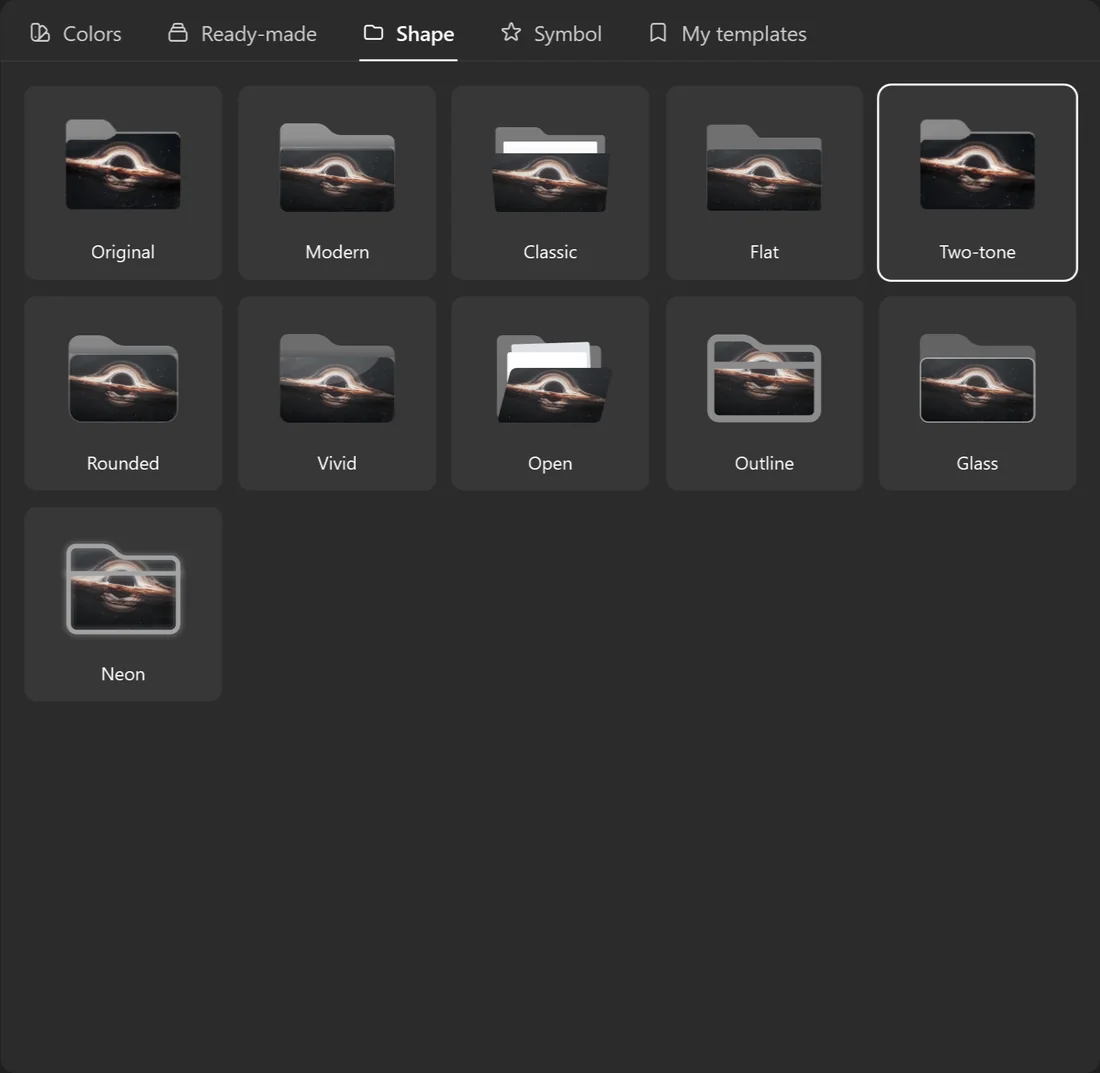
Eleven folder styles
Every color, symbol and picture works with each of them.











Change your mind? Put it back.
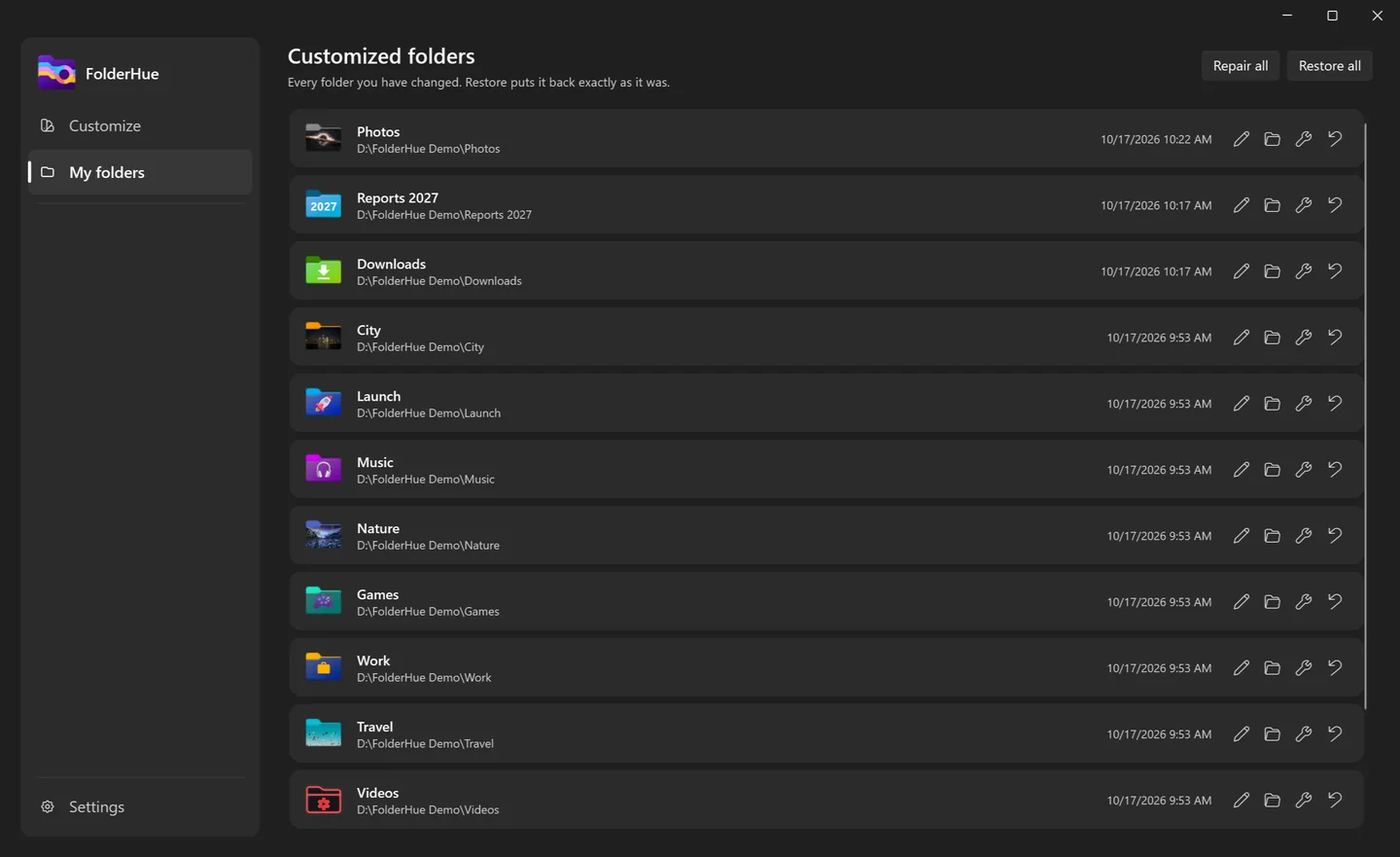
My folders lists every folder you have changed. Restore one or all of them, and each goes back exactly as it was.
- Nothing is left behind
- Repair brings back an icon Windows dropped
- Icons stay with the folder when you move or sync it
See it in 30 seconds
Pricing
Free
$0
- Any color, from the right-click menu
- 4 folder styles
- 124 symbols and everyday emoji
- Text on folders
- Templates and restore
- Essentials, Status and Work folders
Pro
$4.99 once, no subscription
- Everything in Free
- All 11 folder styles
- Gradients and two-tone folders
- 7,000+ symbols and every emoji
- Your own pictures
- All 170 ready-made folders
Pro is bought inside the app, through your Microsoft account.Go further
Guides
How to change folder color in Windows 11 and 10, color code folders, use a picture as a folder icon, and fix icons that won't change.
Folder colors
Red, blue, green, purple and more, each shown in different folder styles, with ideas for what to use them for.
Ready-made folders
All 170 ready-made folder icons by category: essentials, status, work, development, media, study, personal and games.
Questions
How do I change a folder's color in Windows 11?
Windows has no setting for it. Install FolderHue, right-click the folder in File Explorer, choose Folder color and click a color. The folder gets its own icon straight away.
Does FolderHue work on Windows 10?
Yes. It works on Windows 10 and Windows 11.
Will my folder icons reset after a restart?
No. The icon is saved inside the folder itself, so it stays after a restart and goes with the folder when you move it, rename it, copy it to a USB drive or sync it to another PC.
How do I get the plain yellow folder back?
Open My folders in FolderHue and click the restore button next to the folder, or Restore all. Each folder goes back exactly as it was. You can also right-click the folder and choose Folder color, then Restore default.
What happens if I uninstall FolderHue?
Your folders keep their icons. If you want them plain again, restore them in FolderHue before you uninstall.
What does Pro add?
All 11 folder styles, gradients and two-tone folders, all 7,000+ symbols and every emoji, your own pictures, and the full library of 170 ready-made folders. It is one payment of $4.99, with no subscription.
Does FolderHue collect my data?
No. There is no account, no ads and no tracking, and it works offline. The pictures you put on folders stay on your PC. Read the privacy policy.