 FolderHue
How to change folder color in Windows 10
Like Windows 11, Windows 10 keeps every folder yellow and has no color setting. You don't need registry tweaks or icon packs: FolderHue colors folders from the right-click menu and works the same way on Windows 10.
Steps
Install FolderHue
Get FolderHue from the Microsoft Store on your Windows 10 PC.
Right-click the folder
In File Explorer, right-click the folder. To color many folders at once, select them all first.
Pick a color
Choose Folder color and click a color. The icon changes straight away.
Fine-tune it in the app
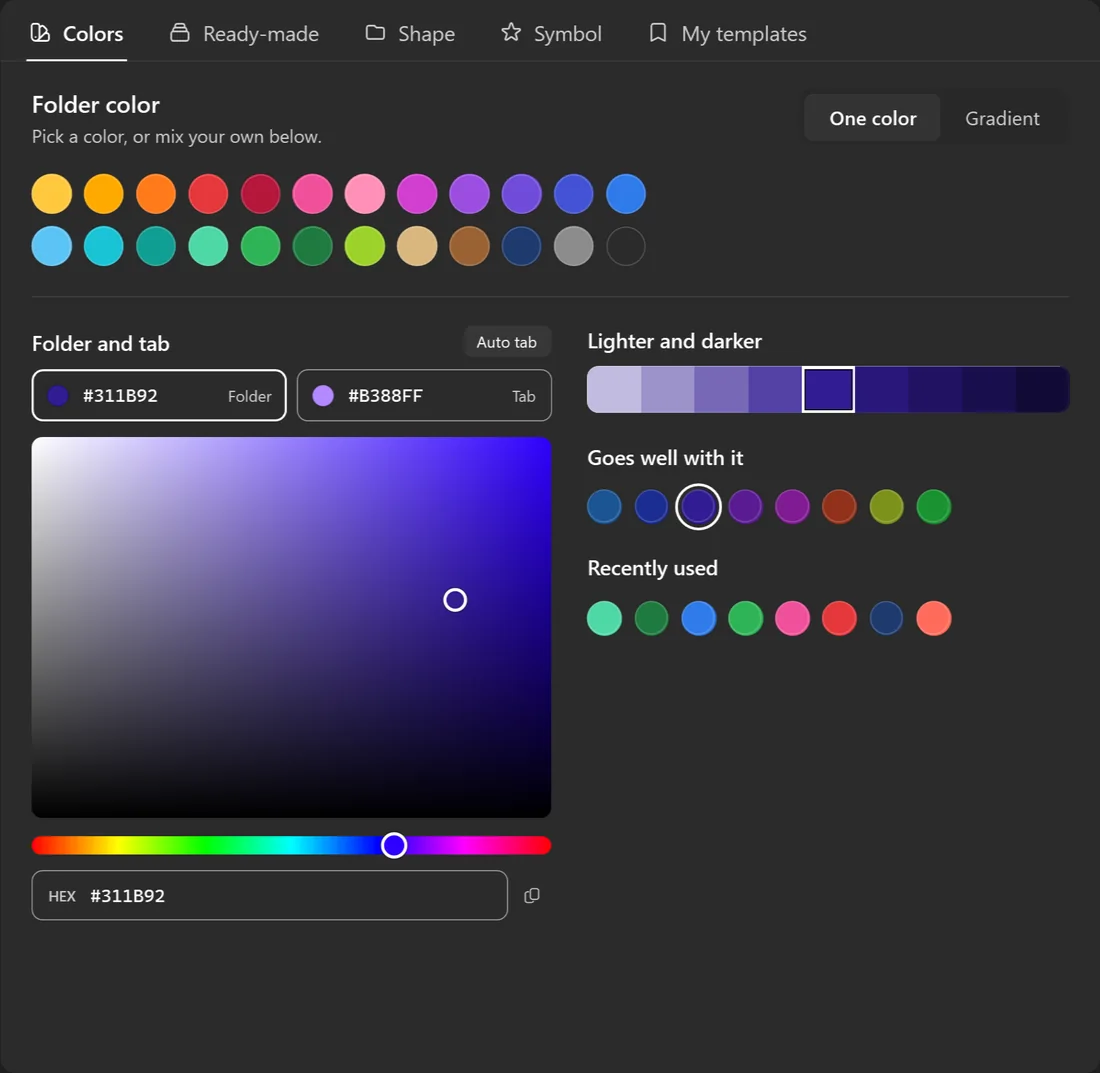
Choose More colors and icons… to mix your own color with the color picker or a HEX code, or to add a symbol.
Windows 10 and Windows 11 work the same
FolderHue uses the same desktop.ini method on both, so a folder you color on Windows 10 keeps its color if you copy it to a Windows 11 PC, and the other way round.
Undo it
Open My folders in FolderHue to restore one folder or all of them, exactly as they were. The restore guide also shows how to do it by hand in Windows.
Questions
Does it work on older versions of Windows?
FolderHue supports Windows 10 and Windows 11.
Will it slow down File Explorer?
No. Each folder simply has its own small icon file, the same as any folder with a custom icon.