 FolderHue
How to change folder color in Windows 11
Windows 11 lets you change a folder's icon, but it has no option to change its color. Every folder stays the same yellow. FolderHue adds that missing option to File Explorer's right-click menu, so a folder can be red, blue, green or any color you pick.
Steps
Install FolderHue
Get FolderHue from the Microsoft Store. It is free to start and works on Windows 11 and Windows 10.
Right-click the folder
In File Explorer or on the desktop, right-click the folder you want to color. You can also select several folders and right-click one of them.
Choose Folder color
Point to Folder color and click one of the colors. The folder changes straight away.
Want more? Open the app
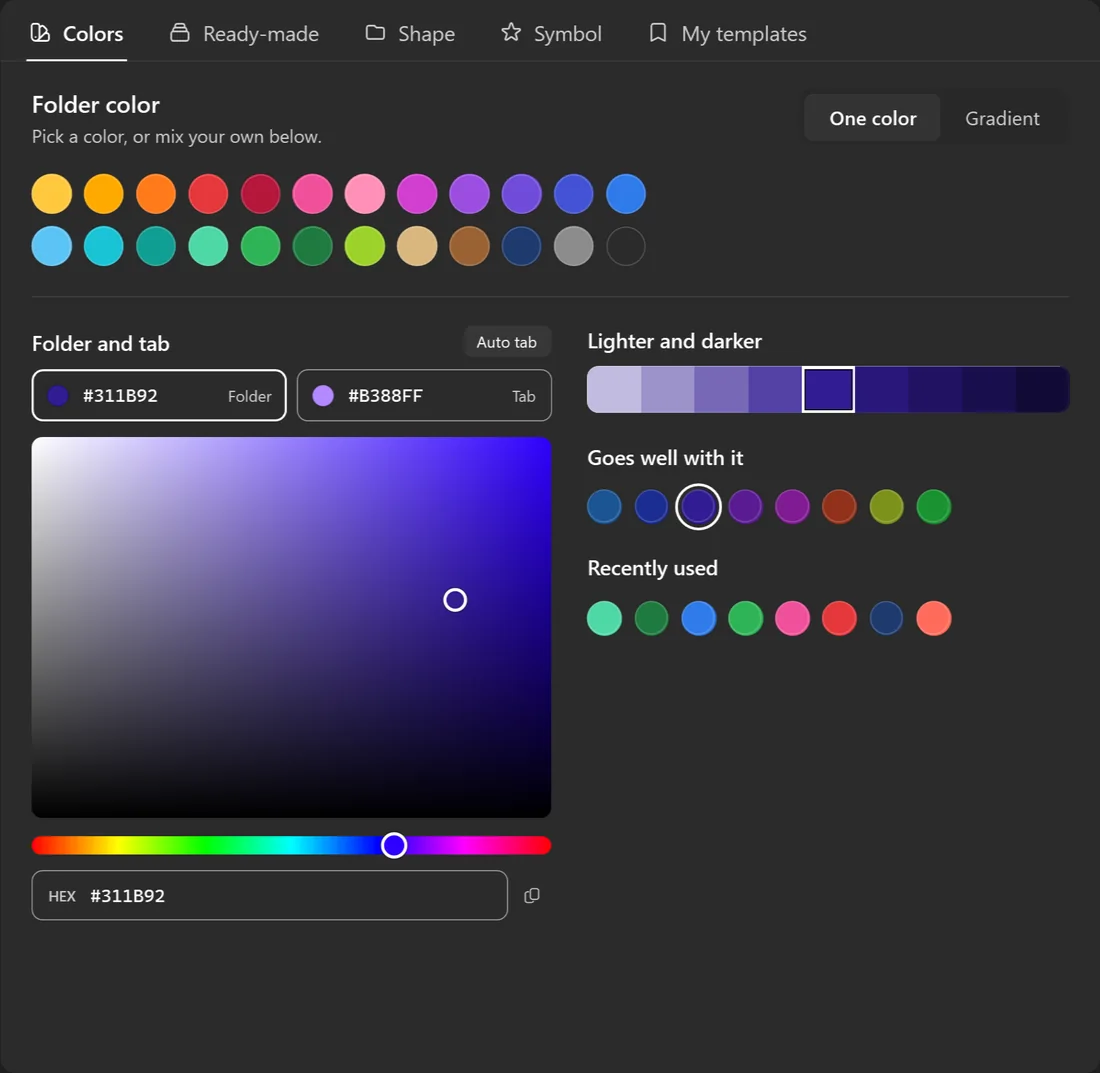
Choose More colors and icons… to open FolderHue, where you can mix any color, add a symbol or emoji, or pick a different folder style.
Does the color stay after a restart?
Yes. FolderHue saves the new icon inside the folder and points Windows to it through the folder's desktop.ini file, which is how Windows itself stores custom folder icons. The color stays after a restart, and it travels with the folder when you move it, rename it or sync it.
Picking colors that help
A color only helps if it means something. Many people keep one color per kind of folder: red for urgent, green for done, blue for work, yellow for personal. The color coding guide has a system you can copy.
Questions
Can I change folder color in Windows 11 without an app?
Not the color. Windows can only swap a folder's icon for another .ico file, through Properties → Customize → Change Icon. To color a folder you need a colored .ico file, and FolderHue makes and applies it for you. See the manual way.
Is it free?
Yes. Changing folder colors, with any color you like, is free. Pro, a one-time purchase, adds more folder styles, symbols, emoji and your own pictures.