 FolderHue
How to color code folders in Windows (a system that works)
Color coding works when each color means one thing, and you keep to it. Pick one of the systems below, write it down, and color your top-level folders first. You will find things by sight within a day.
Steps
Choose what the colors mean
Pick one dimension: status (to do, in progress, done), area (work, personal, study) or client. Mixing them makes colors meaningless.
Keep to five or six colors
More than six and you stop remembering what each one means. Use symbols for finer detail.
Color the top folders first
Select the folders that belong to the same group in File Explorer, right-click, choose Folder color and the color. Repeat for each group.
Save the looks as templates
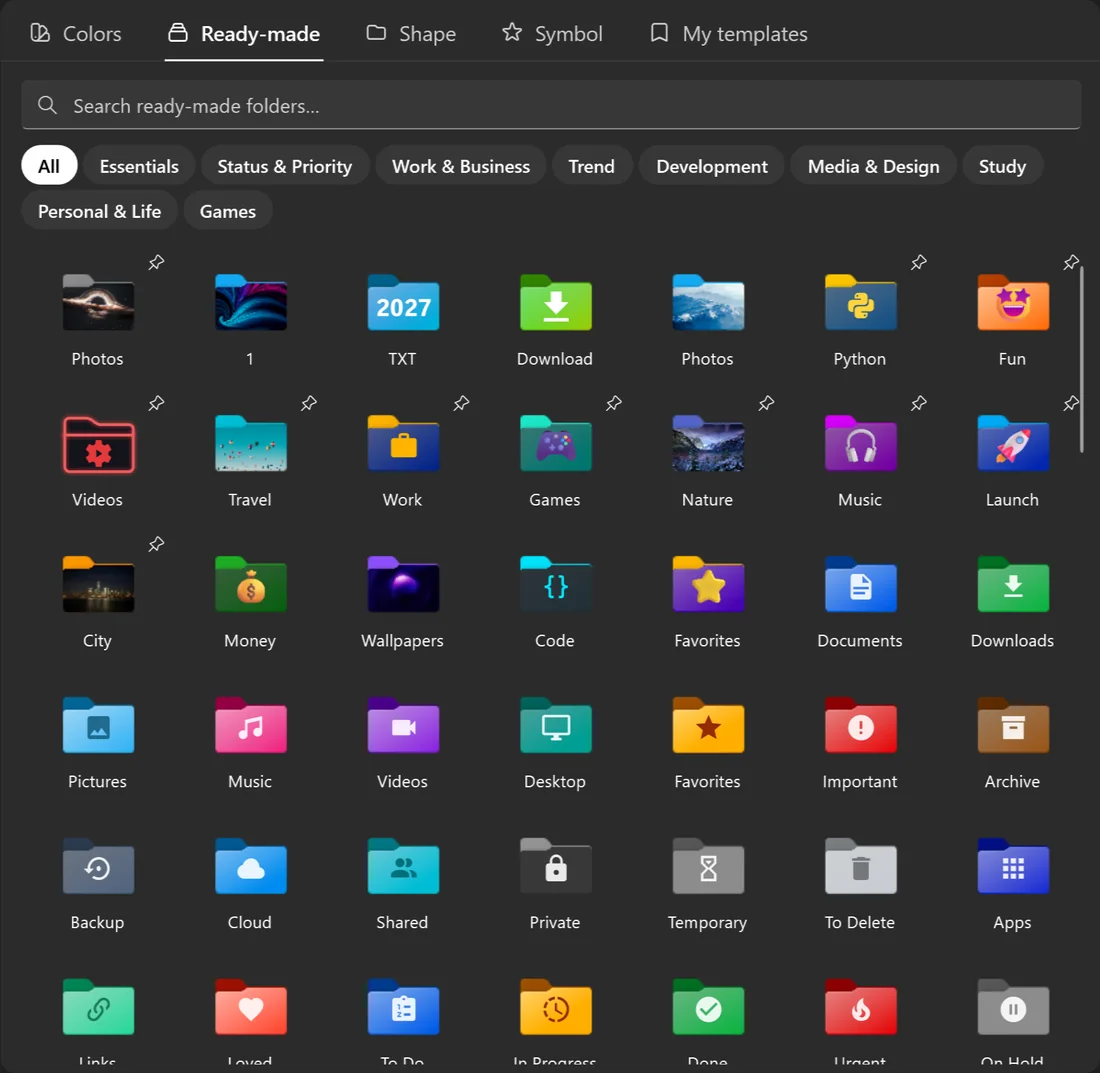
In FolderHue, save each color with its symbol as a template. Templates appear in the right-click menu, so new folders get the same look in one click.
A status system
- Red: urgent or blocked
- Orange: in progress
- Blue: to do
- Green: done or approved
- Gray: archive
FolderHue's Status & Priority folders follow this system, with a symbol for each.
An areas-of-life system
- Blue: work
- Green: money and bills
- Purple: study
- Yellow: personal
- Pink: photos and memories
Browse colors
See how each color looks in every folder style on the folder colors pages.
Questions
Can I color code many folders at once?
Yes. Select them all in File Explorer and right-click one, or drag them onto FolderHue's window.
What if I change my system later?
Open My folders in FolderHue to see every folder you colored, restore them, or color them again.