 FolderHue
How to use a picture as a folder icon in Windows
A photo on a folder is the fastest way to recognise it: a holiday picture on Travel, a client's logo on their folder, a screenshot on a project. Windows only accepts .ico files for folder icons, so normally you would have to convert the picture first. FolderHue takes the picture as it is.
Steps
Open the folder in FolderHue
Right-click the folder, choose Folder color → More colors and icons….
Choose Image
On the Symbol tab, choose Image and pick a JPG or PNG from your PC, or paste one.
Place it
Choose whether it sits on the folder or fills it, then drag and zoom it until it looks right. It works with every folder style.
Apply
Click Apply. FolderHue turns the picture into an icon at every size and saves it inside the folder.
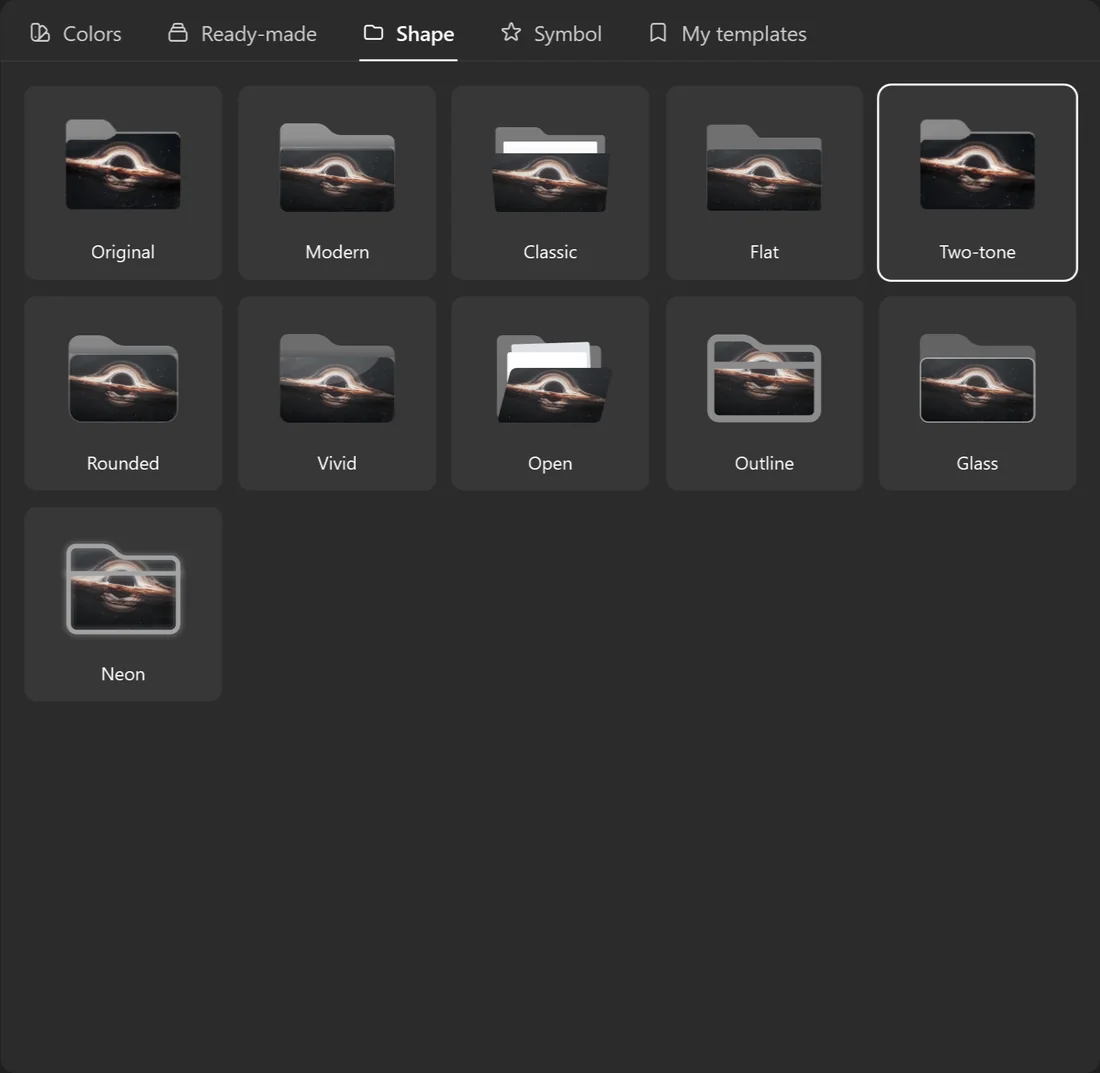
Your picture stays on your PC
FolderHue keeps a copy of the picture with your templates so the design still works if you move the original. Nothing is uploaded anywhere. Read the privacy policy.
Questions
Which formats work?
JPG and PNG pictures, including screenshots and logos with transparent backgrounds.
Is this a Pro feature?
Yes. Your own pictures on folders are part of FolderHue Pro, a one-time purchase.