Bears folder icons for Windows 11 and 10
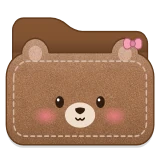
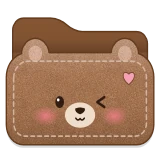
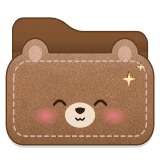
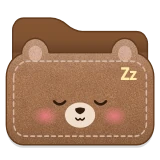
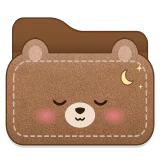
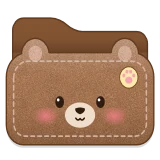
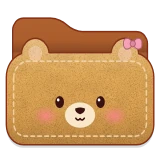
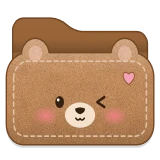
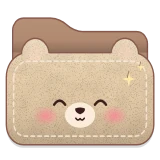
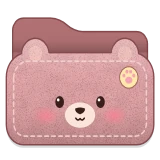
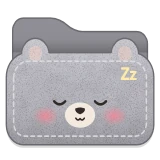
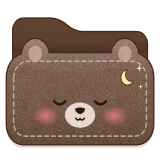
Twelve teddy bear folders with a stitched felt face: six expressions in cocoa brown, smile, wink, happy, sleepy, dreamy and cozy, then honey, caramel, cream, pink, gray and chocolate fur.
What's in the Bears set
The set has 12 folders: Smile, Wink, Happy, Sleepy, Dreamy, Cozy, Honey, Caramel, Cream, Pink, Gray and Chocolate.
Ideas for using them
The faces can say something about the folder: a sleepy bear for Archive and old files, a happy one for photos, a wink for a private folder, a dreamy one for ideas. Children find their own folder at a glance.
The bear is a little larger than a normal folder, so it stands out in a row of plain ones, and its large size takes it nearly to the edges of the icon. Choose any fur color on the Colors tab, and a face under Face on the Shape tab.
How to apply a Bears folder
Open FolderHue from the folder
Right-click the folder in File Explorer and choose Folder color › More colors and icons…
Pick a Bears folder
Open the Ready-made tab, choose Bears and click the folder you want. The preview shows it on your folder straight away.
Apply it
Click Apply. The new icon shows in File Explorer at once, and you can put the original back at any time.
Questions
Are the Bears folders free?
They are part of FolderHue Pro, $4.99 once with no subscription. In the free version you can still open all 12 of them and see them on your folder before you decide.
Can I change a Bears folder after picking it?
Yes. A ready-made folder is a starting point: change its color, symbol or shape in the other tabs, then choose Save as template to keep your version. Templates also appear in the right-click menu.